
Fake Microsoft emails are making the rounds. Here’s how to spot one.
A wave of fake Microsoft email notices is hitting inboxes across Southwest Oregon. Here are five signs it’s a fake and what to do instead of clicking.

Our helpdesk is seeing a wave of convincing emails that look like they come from Microsoft, Office 365 or OneDrive. They’re designed to rush you into clicking a link and entering your password. Once a scammer has that password, they can read your email, take your files and send more scams from your account to the people who trust you.
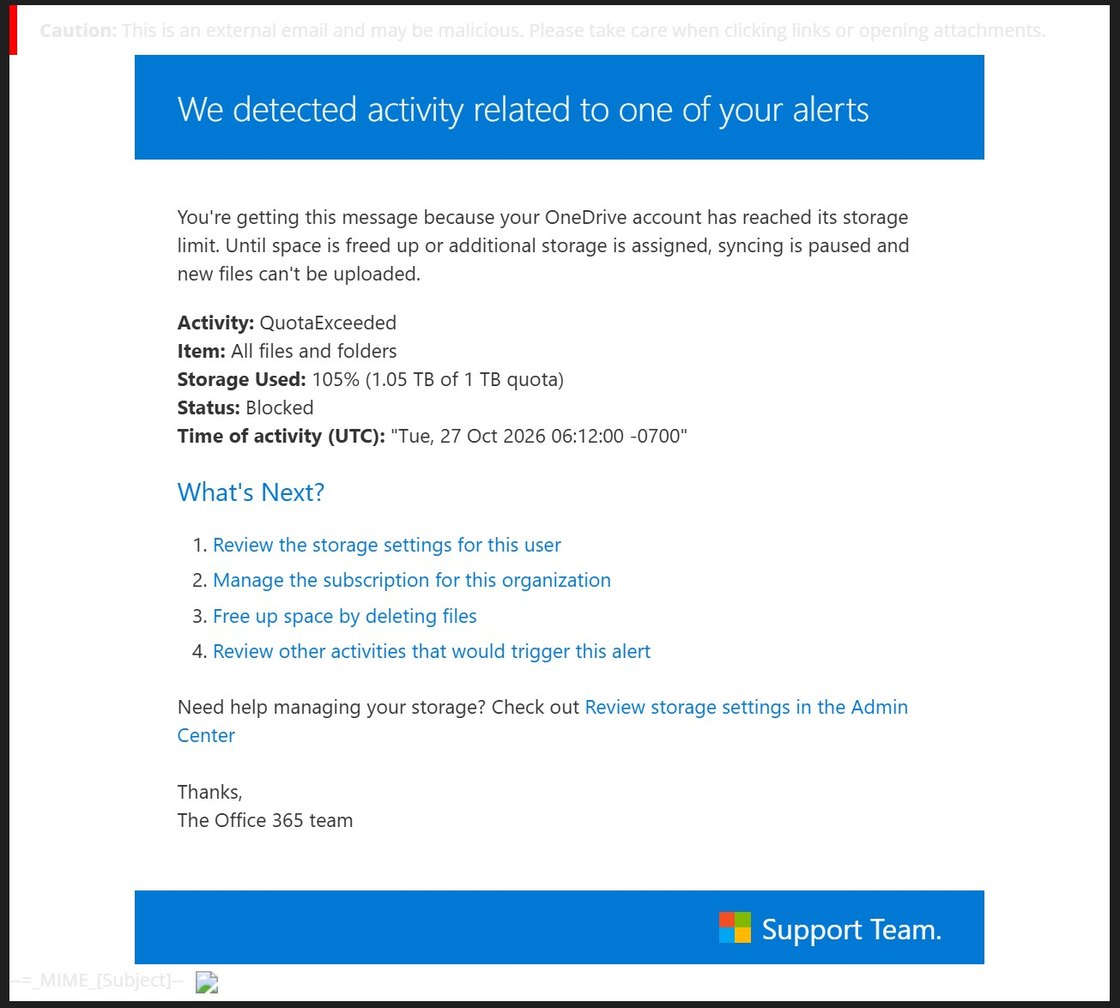
The good news: these messages follow a pattern, and once you know it they get much easier to spot. Here’s a real one that landed this week and what gives it away.
What this fake Microsoft email looks like
Five signs it’s a fake
- Panic language. “Blocked,” “105%,” “syncing is paused.” Scams rush you so you don’t stop to think.
- Sent to the wrong person. It asks you to “manage the subscription for this organization.” Real admin alerts go to whoever runs your IT, not to everyone on staff.
- Sloppy details. The time says “UTC” but shows a Pacific offset, and junk code (“MIME [Subject]”) and a broken image sit at the bottom.
- Generic sign-off. “The Office 365 team” and “Support Team.” No names, no real contact information.
- Every line is a link. Hover over a link (don’t click) and the address will not be a microsoft.com page.
Be suspicious of any email like these
This campaign isn’t limited to storage warnings. Treat any unexpected “Microsoft” notice in these four categories with caution.
Account alerts
“Unusual sign-in,” “account suspended,” “verify your identity”
Billing and payment
“Payment failed,” “invoice attached,” “renew your subscription”
Password expiration
“Your password expires today. Keep current password.”
Storage and mailbox
“OneDrive full,” “mailbox quota exceeded,” “messages on hold”
What to do instead of clicking
- Don’t click. No links, buttons, QR codes or attachments, and don’t reply.
- Check the real way. Open a browser and go to office.com yourself, or open the Outlook or OneDrive app. If there’s a real problem with your account, it will show there.
- Report it. In Outlook, use the Report button (Report → Phishing), or forward the message to your IT provider. Then delete it.
- Tell your team. If one person got it, others likely did too. A quick heads-up keeps the next person from clicking.
Already clicked?
Speed matters more than embarrassment
If you clicked a link or typed your password into one of these pages, contact your IT provider right away. Fast action stops the damage: changing the password, signing out active sessions and checking for new mail rules can shut a scammer out before they do anything with your account.
Nobody should be in trouble for asking. A good IT team would much rather check a real email than clean up a fake one.
Not every phishing email asks for a password, either. Some try to trick you into approving a sign-in code instead, like the device code phishing campaign we covered in September. The same rule applies to both: when an email pushes you to act fast, slow down and check through the app or site you already use.
Sources: CISA, Recognize and Report Phishing · FTC, How to Recognize and Avoid Phishing Scams · Microsoft, Protect yourself against phishing and other attacks.
Want your team ready for the next one?
We help Southwest Oregon businesses tighten Microsoft 365 security and train staff to spot phishing before it turns into a problem.
Already a systech client? Forward suspicious email to support@systech.io or call 541.696.5555, Option 1.
Keep reading
More from the blog
-
Security alert
Device code phishing: how a "confidential document" email tries to take over your Microsoft 365 account
A phishing email built to take over an account without ever asking for a password.
-

IT planning
Small business IT budget: what to include and how to plan it
Support, security, renewals and the costs that usually get left out.
-
IT planning
How long business computers last and when to replace them
Three to five years is a planning range, not an expiration date.