Greg Ekborg
Marketing Director, systech
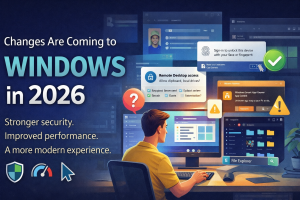
Windows Is Getting an Upgrade: What You Need to Know in 2026
Why Are Things Changing?
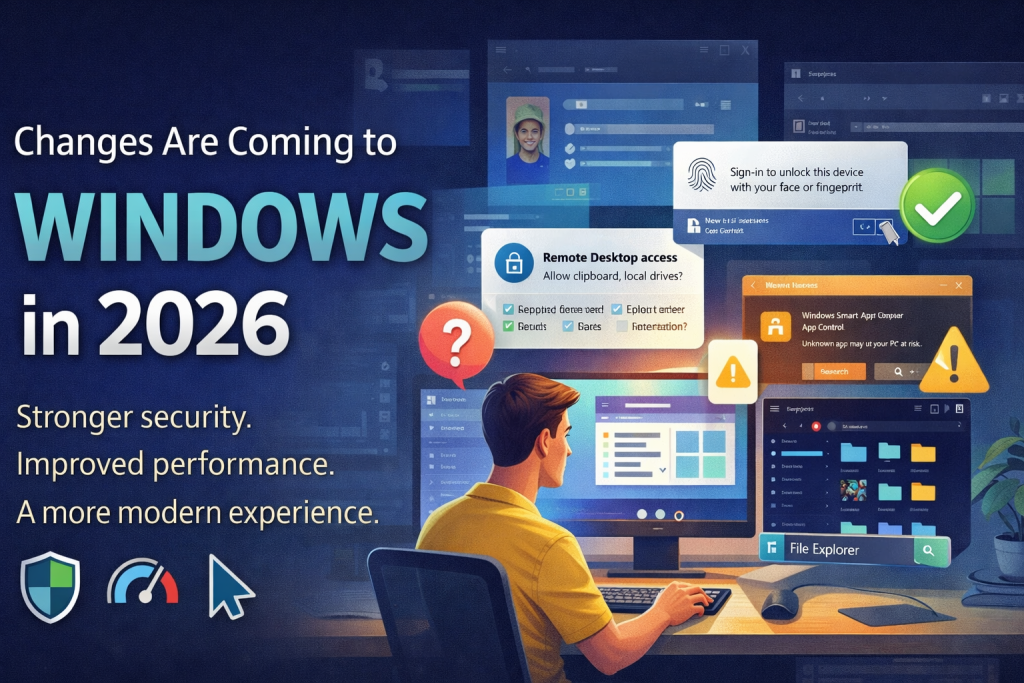
Microsoft is rolling out a major quality initiative for Windows throughout 2026. The goal is to make your computer faster, more secure, and easier to use — but in the short term, some things will look and feel different.
Better Security
New protections that keep your data and accounts safer from modern threats.
Improved Performance
Lower memory usage, faster startup, and fewer random slowdowns or crashes.
Updated Look & Feel
Menus, settings, and the taskbar are getting visual refreshes to be more intuitive.
What You Might Notice
These changes are rolling out gradually over the coming months. Not everything will happen at once.
Your Start Menu May Look Different
Microsoft rebuilt it from scratch. It opens faster and you have more control over what appears — but items may be in new places at first.
The Taskbar Can Be Moved
Windows now lets you place the taskbar on top or either side of your screen. If yours seems to have moved, it may have been bumped accidentally — easy to fix.
Settings & Control Panel Are Merging
Options you used to find in Control Panel are gradually moving into the Settings app. If something seems missing, it likely moved — not disappeared.
File Explorer Got an Overhaul
Faster, smoother, and with full dark mode support. Search works better. You may notice subtle visual differences.
New Security Prompts
ℹ️ Remote Desktop Connections
When you open a Remote Desktop (.rdp) file, Windows now shows a security dialog asking you to confirm what the connection is allowed to access — things like your clipboard, printers, and local drives.
systech is working on a settings change to streamline this for your organization so you don't have to approve it manually each time.
✅ Smart App Control
Windows may now flag or block apps it doesn't recognize. If you see a warning when opening a trusted program, let IT know — we can approve it for you.
🔐 Windows Hello & Sign-In
Facial recognition and fingerprint login are getting reliability improvements. If prompted to re-enroll your face or fingerprint, that's expected — it should work more consistently afterward.
Behind the Scenes
You may not see these directly, but they'll make your daily experience better.
Smarter Windows Updates
Updates are being redesigned to require fewer restarts and to let you choose when they happen. The goal: one reboot per month, on your schedule.
Lower Memory & Faster Boot
Windows will use less RAM and start up faster. Background processes are being optimized so your applications get more resources.
Stronger Driver Security
Only properly certified drivers will load. This prevents unstable or malicious software from causing crashes. Your IT team is verifying all your hardware is compatible.
Bluetooth & Audio Stability
Bluetooth pairing, USB audio, and wireless peripherals are getting reliability fixes. Fewer random disconnects and pairing failures.
A Few Things Are Going Away
Microsoft is retiring some older features. Here's what that might mean for you.
Copilot Is Being Scaled Back
If you used Microsoft's Copilot shortcuts in File Explorer, Notepad, or Photos, some of those entry points are being removed or relocated. It's not gone — just less in-your-face.
3D Viewer App Removed
The 3D Viewer app will be removed from the Microsoft Store in July. If you use it for viewing 3D models, let IT know and we'll help you find an alternative.
Some Older Software May Stop Working
Microsoft has tightened requirements for which programs and drivers can run. If an older application suddenly won't open or a device stops working, it's likely related to these security updates.
Windows 10 Support Is Ending
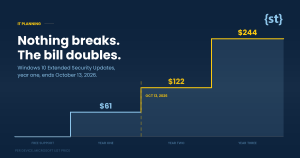
If your computer still runs Windows 10, extended support ends in October 2026. Your IT team is already planning upgrades for affected machines.
Your IT Team Is Already On It
We're monitoring every update Microsoft releases and taking proactive steps so you experience as few disruptions as possible.
What To Do If Something Seems Off
Don't Panic
If something looks different or a new popup appears, it's very likely a planned Microsoft change — not a virus or error. Take a breath.
Try the Basics
Close and reopen the app, or restart your computer. Many update-related quirks resolve themselves after a quick reboot.
Reach Out to IT
If something is blocking your work or you're unsure about a new prompt, open a ticket or give us a call. That's what we're here for.
We're Here to Help
These changes are designed to make Windows better.
Your IT team is making sure the transition is smooth.